There’s a gap between two kinds of show-control tools. On one side, clip-based players where every video is its own tile you fire by hand. Fine for simple cue lists, painful once you need overlays, audio, and precise timing. On the other side, NLEs and compositors that produce a finished video but don’t let an operator pause, wait, loop, or riff with the room.
VideoCue sits in the middle. One global timeline plays continuously, with named cues planted at specific times that pause, stop-and-wait, loop, or cross-fade into the next section. The operator hits GO to advance. The show plays itself between cues and waits at every decision point, so the same project runs identically night after night, but still bends to whatever’s happening in the room.
Who it’s for
Projection designers running cue-based shows for theater, dance, and opera. Lecture halls and conferences where a presenter advances through media on cue. Worship and broadcast environments: sermon backgrounds, scripture cards, lower-thirds. Immersive installations and classroom demos.
If your workflow is “every video is a separate tile fired by hand,” VideoCue is bigger than you need. If it’s “produce a finished cut and play it back,” you want an NLE. The sweet spot is a scripted show th
What’s New · Recent Builds
Fresh in the beta.
Between b11 and b25, VideoCue has grown in the directions the seemed natural: real projection mapping, procedural content, and a friendlier timeline. Highlights below — full changelog on the Builds page.
New · b25
Audio clips got draggable in/out handles, synced with the inspector, with loop/sync fixes so the timeline extent correctly covers audio. Cues now snap on the timeline, and cues bound to a keyboard shortcut arm to standby and wait for GO instead of firing immediately.
b17
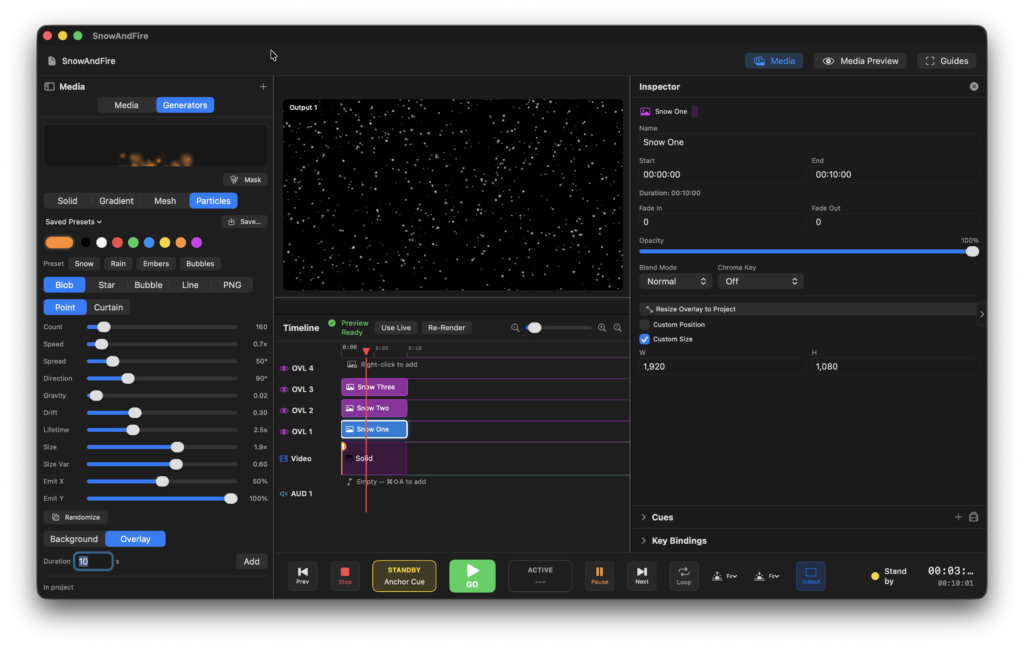
Generators — procedural content, no source footage needed.
Solid, Gradient, Mesh, and animated Particles generators, with one-click presets (snow, rain, embers, bubbles). Drop them onto an overlay track or use them as the main background.
- Every parameter — color, angle, particle count, direction — is keyframe-able, so a generator can breathe over the length of a scene.
- Per-generator quad mask with curved edges, interior feather, and invert — GOBO-style clipping baked into the generated image.
- Save and reapply your own presets across projects.

Extended · b14 → b18
Up to 16 outputs. Tile mosaics and Open Cube presets.
One timeline, up to sixteen destinations, each with its own routed layers and cropped view of the composition. Two shortcuts do most of the heavy lifting:
- Tile Mosaic presets — 2×2, 3×2, 3×3, 4×3, 4×4 — set up a video wall in one click. Each output renders its tile of the composition.
- Open Cube preset maps five outputs as an unfolded cube — Ceiling, Left, Back, Right, Floor — for CAVE-style immersive rooms. The in-app preview shows the cross layout so you can see the whole room at a glance.

Improved · b16 → b18
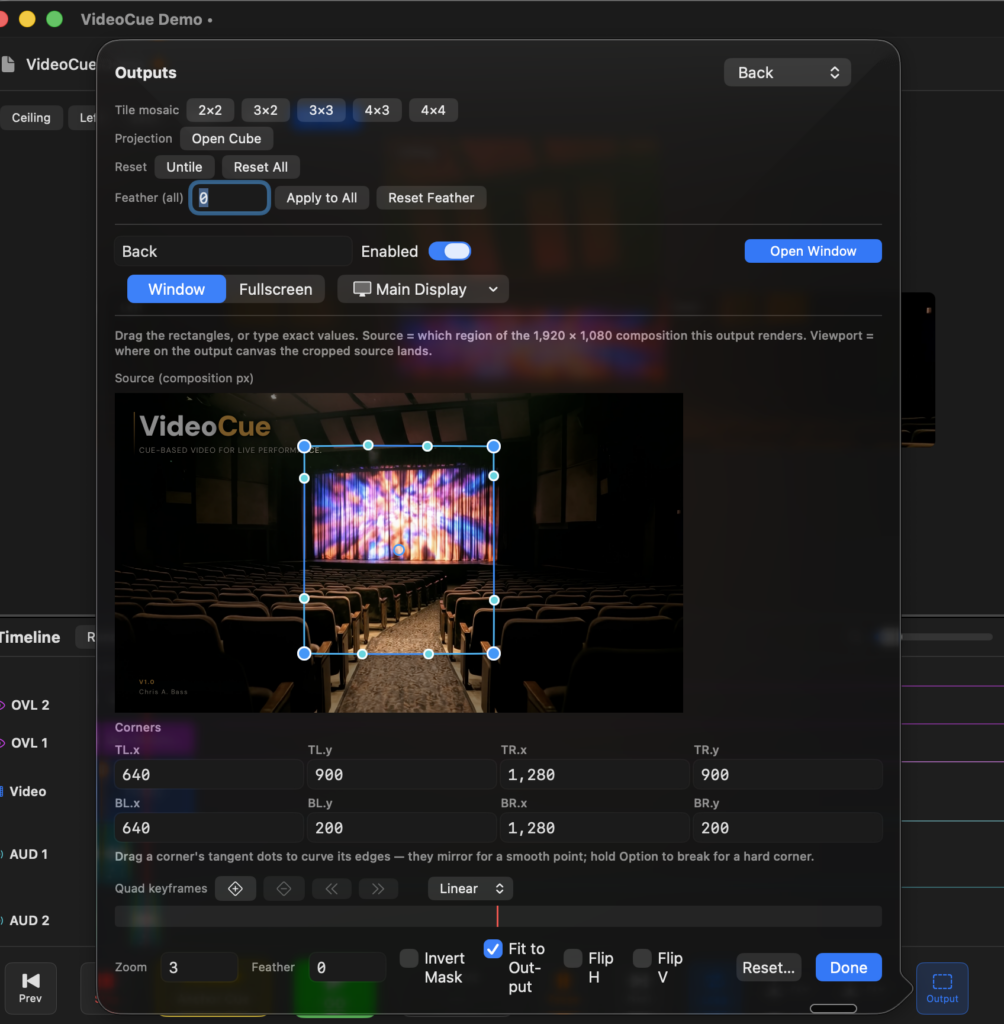
Quad mask with curved edges and feathered blends.
The per-output crop is a real four-corner quad — drag any corner, or pull a corner’s tangent handles to curve its edges. Purpose-built for projection tooling that has to actually fit the room.
- Corner positions are shown in composition pixels, and there are TL/TR/BL/BR numeric fields for repeatable setups.
- The Feather field adds an interior soft edge — the outer boundary stays exactly where you placed the corners; alpha ramps inward. Useful for projector edge-blending.
- New Fit to Output mode stretches the masked region to fill the whole output canvas.


Improved · b16
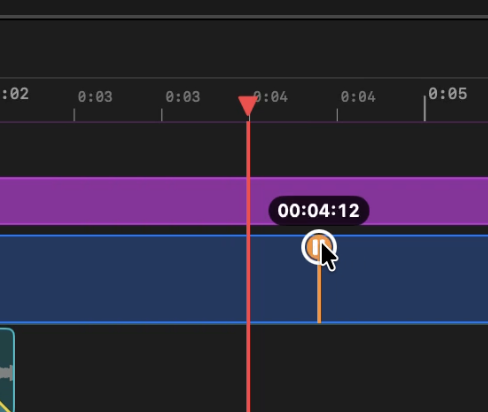
Reposition cues on the timeline by dragging.
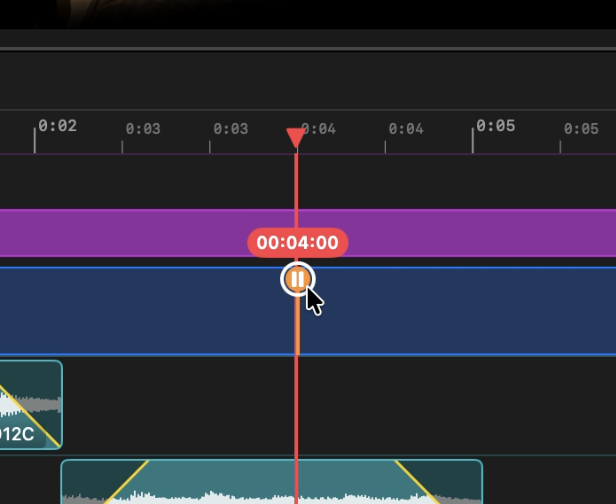
Grab any cue marker and drag it to a new time. A live readout follows the cursor so you can land on the exact frame you want.
- Drag near the playhead to snap exactly to the current time.
- Fine-tune by dragging with the timeline zoomed in — same interaction, sub-frame precision at higher zooms.
at an operator drives live, where the timeline does most of the work and the operator makes the moment-to-moment decisions.
Fund the next stretch
VideoCue is currently self-funded between paid contract work. If it’s useful to you, help fund the next builds — reward tiers based on the same Solo/Venue/Studio license model.
Join the VideoCue Beta
VideoCue is a cue-based video playback app for live performance — theater, music venues, installations, livestreams. It’s currently in private beta. If you’d like to try it, fill out the form below and I’ll send you a license key.
System requirements
- macOS 12 Monterey or newer (Sonoma+ recommended)
- Apple Silicon or Intel Mac
- ~50 MB of disk space
What you get
Notarized DMG download link (sent after approval)
License key for a 30-day trial, bound to one Mac
Feedback form to the developer for bug reports and feature requests
A say in what ships in 1.0
VideoCue Beta Signup
Get on the VideoCue list.
VideoCue is in active build. Subscribe to hear when the next round opens.